¶ ⚙️ Managing Your Account & Optimisation Defaults
The Helio Account page lets you manage your subscription and customise how Enhance behaves across your prints. Settings configured here are applied automatically to every optimisation.
¶ How to Access
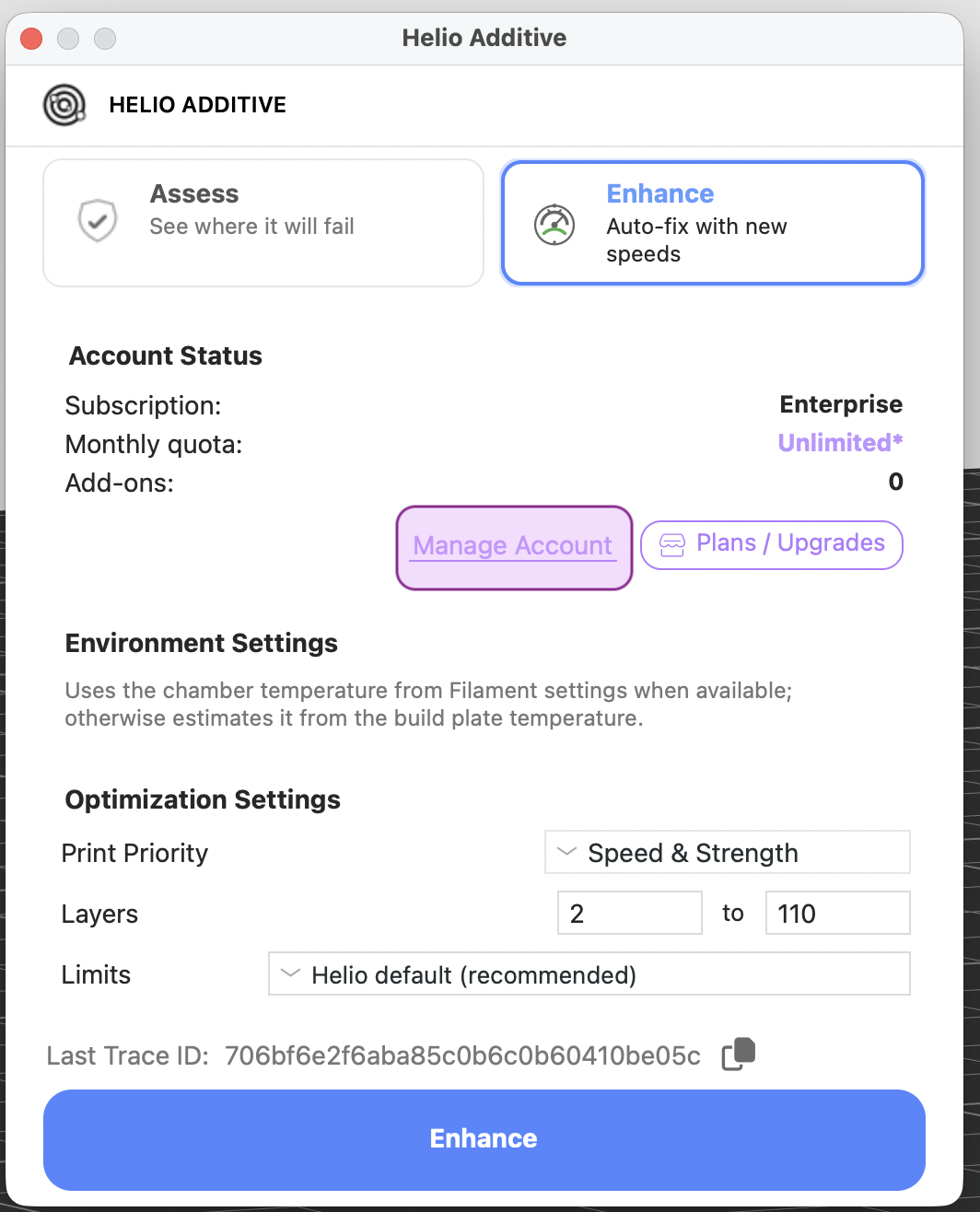
- In Bambu Studio, slice an object → click the Helio icon → Manage Account
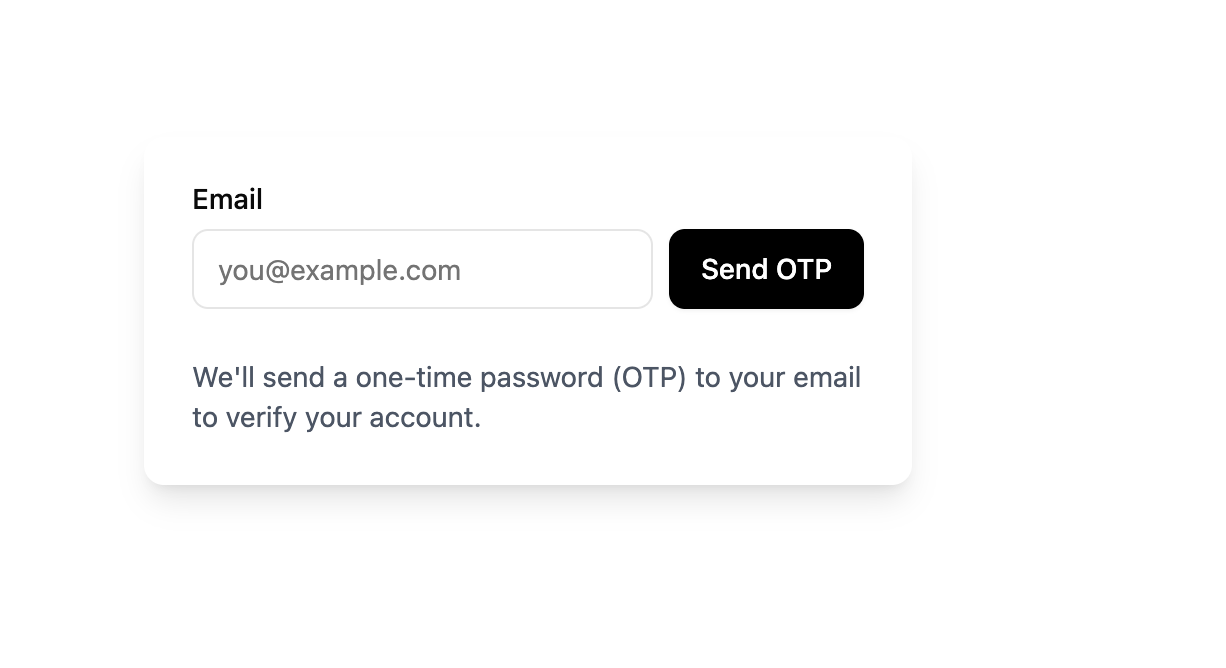
- Verify your email via OTP
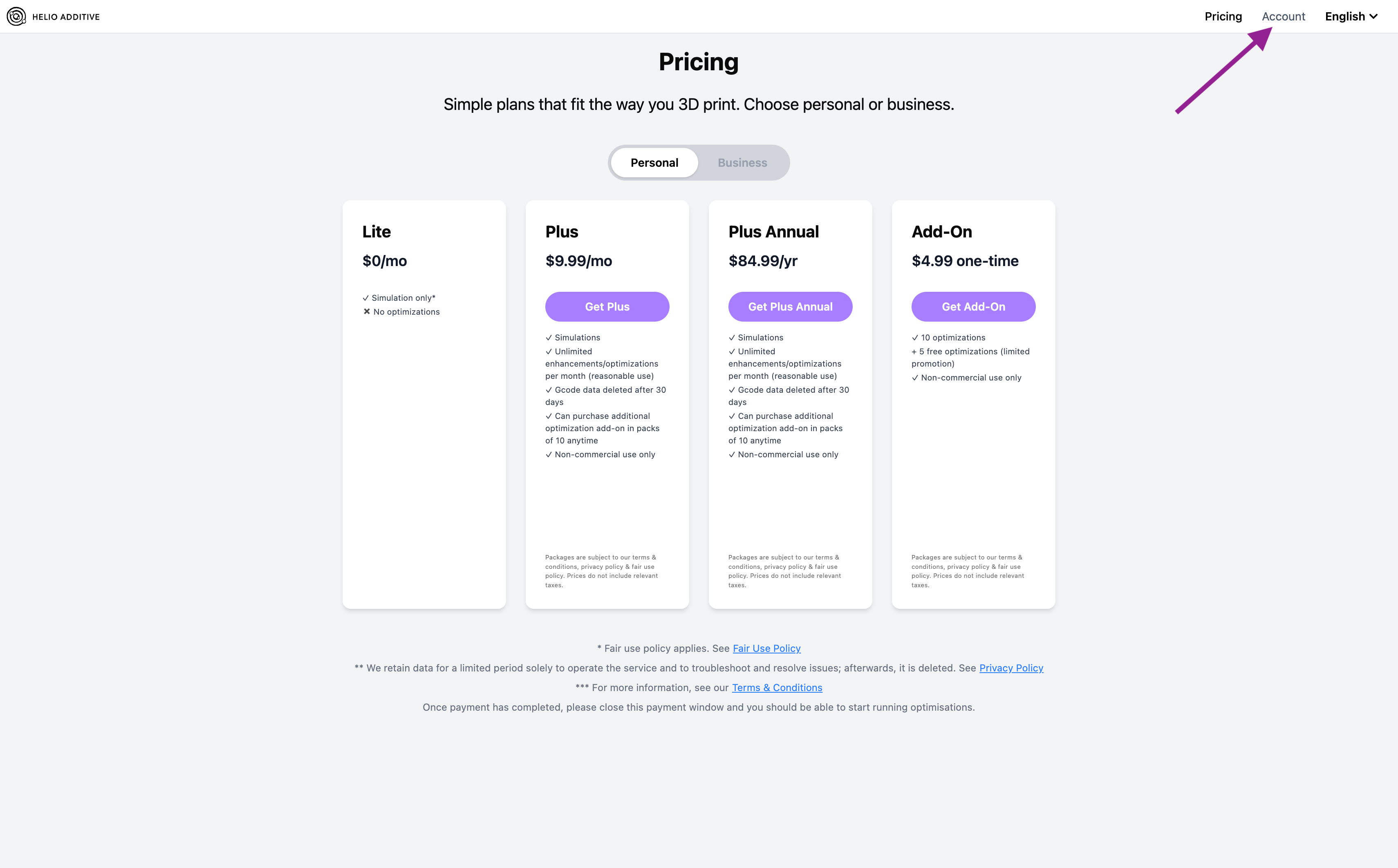
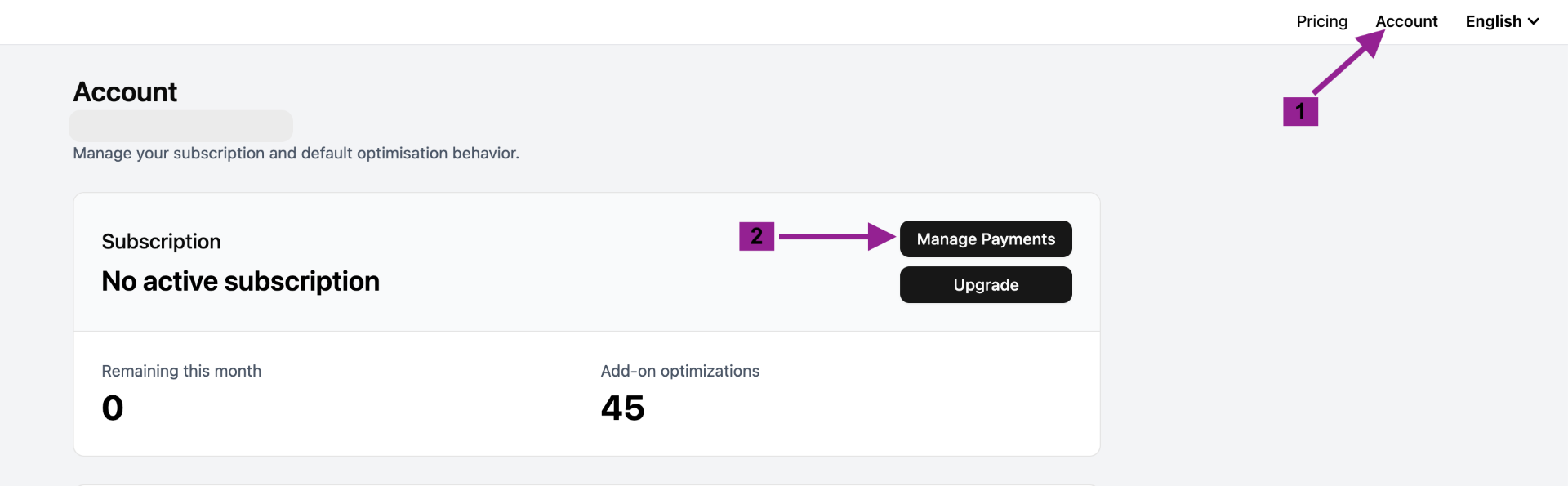
- The Helio Store will open — click Account at the top to access your settings
→
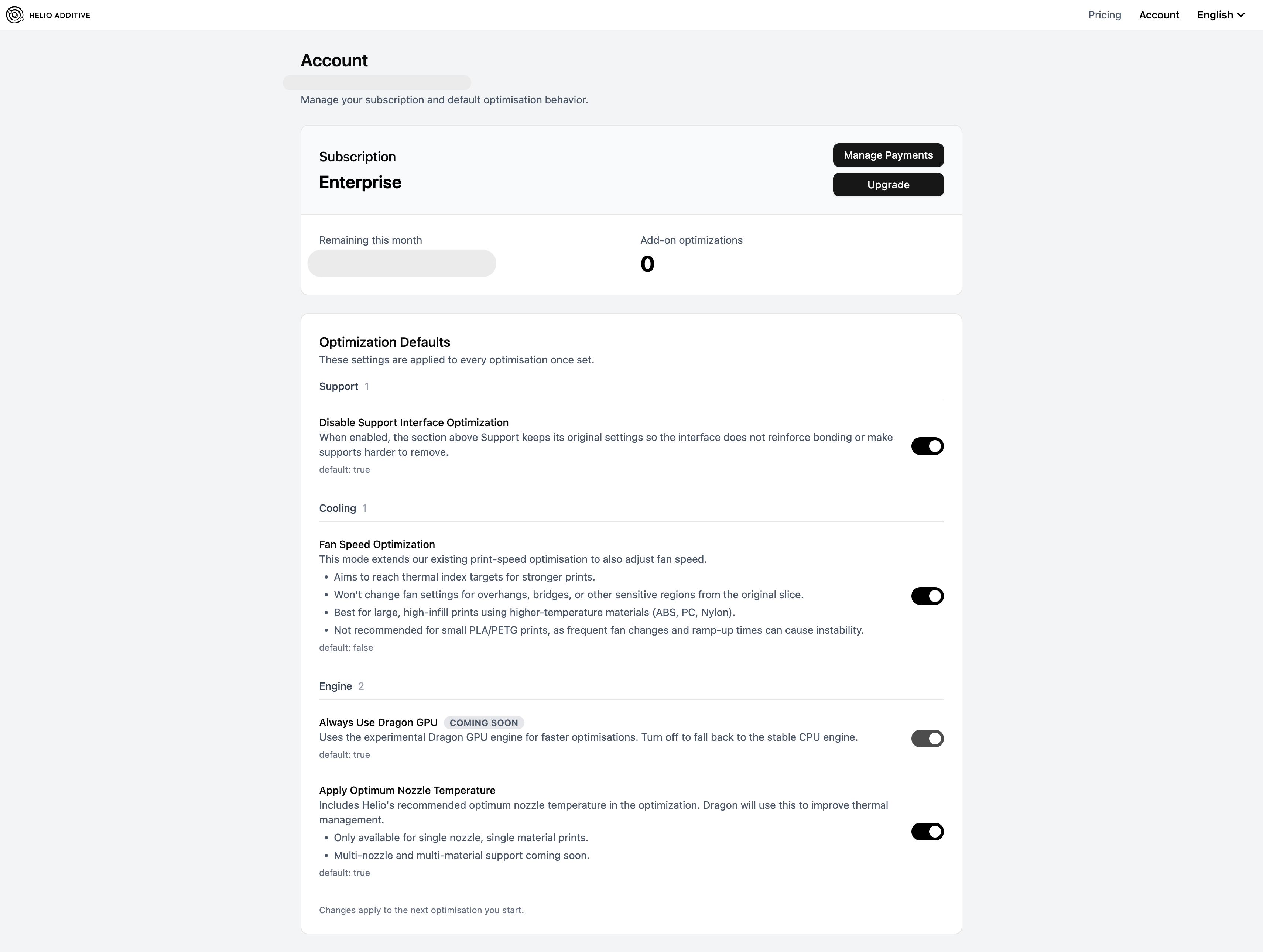
On this page, you can access the following sections:
¶ 💳 Subscription
This section shows your current plan and any add-on optimisations. From here you can:
- Manage Payments — Click to open your payments account, where you can update billing details or your subscription
To change your subscription (e.g. from monthly to annual):
Step 1: Cancel your subscription
- Navigate to your subscription:
Click Manage Payments and locate your subscription
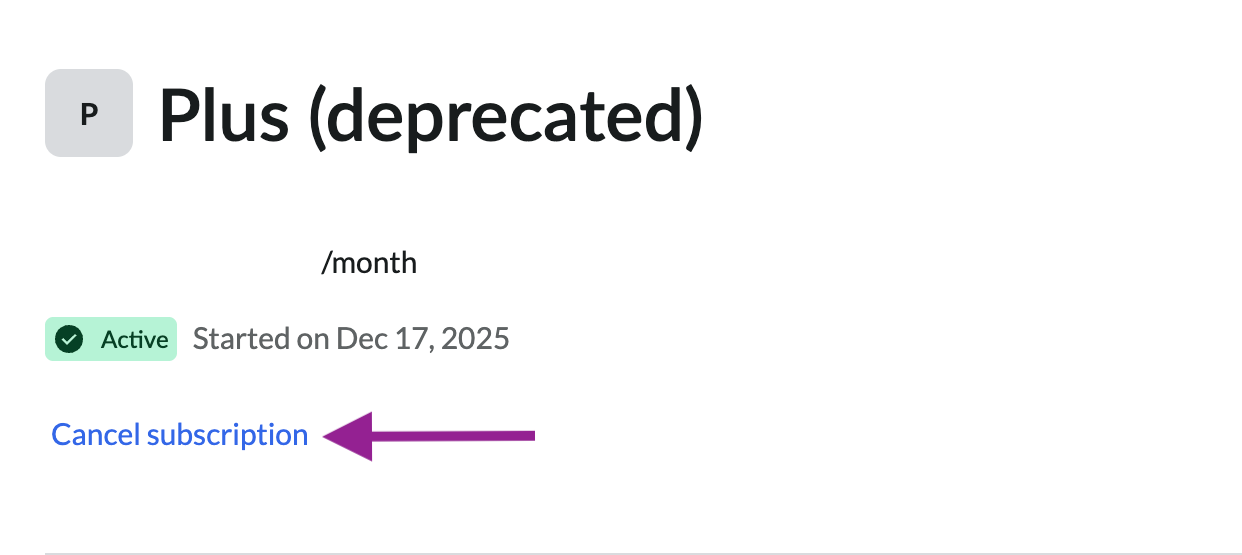
- Cancel your monthly subscription:
Find your subscription → click Cancel subscription
Step 2: Purchase an annual subscription
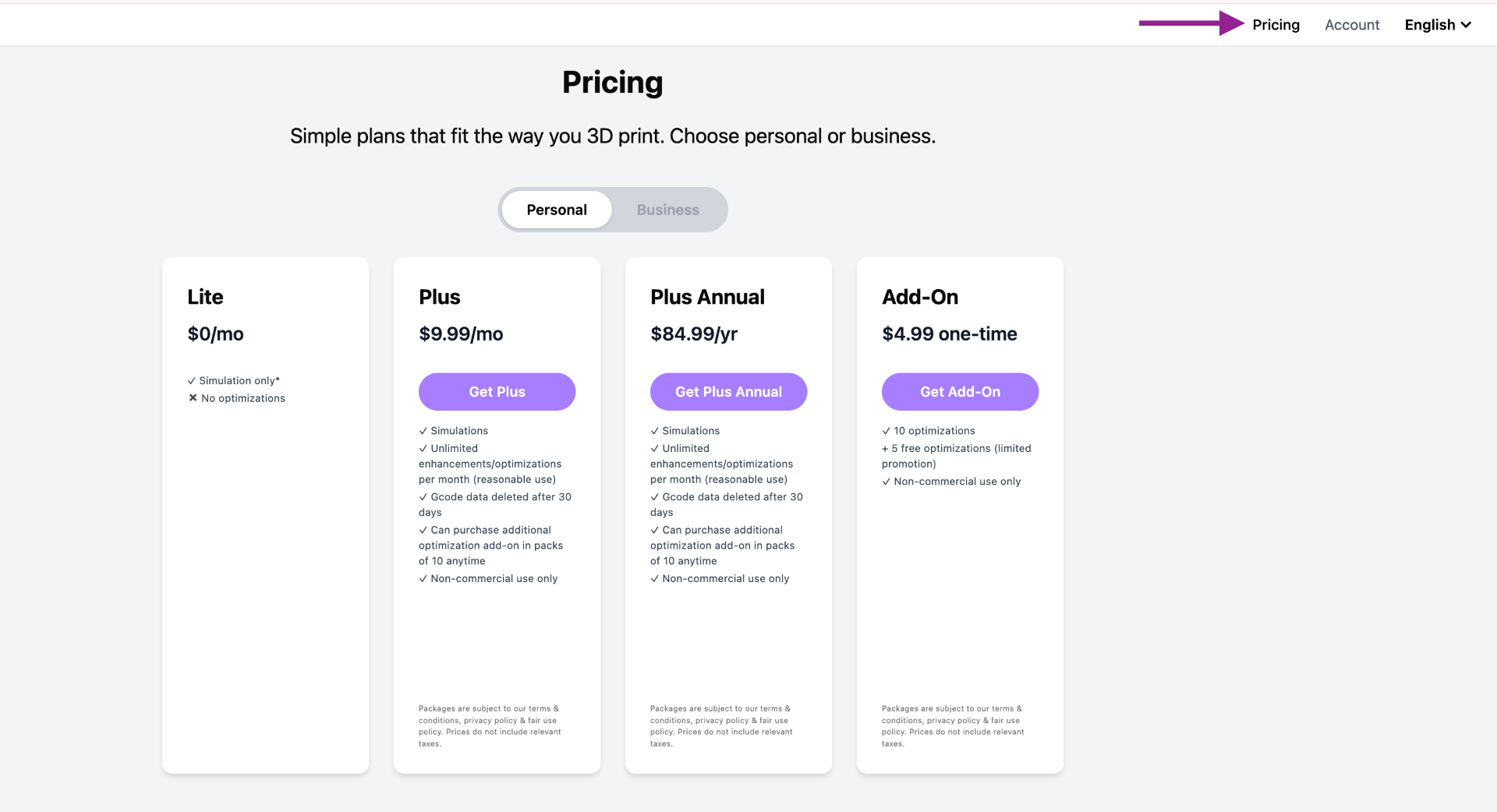
- In the Helio Store, click Pricing
- Select and purchase the annual plan
ℹ️ All plans include unlimited optimisations. Add-on optimisations are separate and do not expire at the end of the month.
¶ 🔧 Optimisation Defaults
These settings are applied to every Enhance run automatically. You do not need to reconfigure them each time.
ℹ️ Changes apply to the next optimisation you start, not to runs already in progress.
¶ 🏗️ Support
Disable Support Interface Optimization (default: on)
By default, Helio leaves the section of your print that sits on supports unchanged, keeping those interface layers at your slicer settings.
Enabling optimisation in this area improves bonding strength, which is useful for critical parts, but can make support removal more difficult.
Turn this off only if support removal is not a concern and you want Helio to optimise the entire print, including interface layers.
ℹ️ For most prints, leaving this on results in cleaner support removal.
¶ 🌀 Cooling
Fan Speed Optimization (default: off)
Cooling directly affects how quickly material solidifies. Too much cooling reduces layer bonding; too little keeps material hot for too long and can affect print quality.
Helio adjusts fan speed dynamically throughout the print, working alongside speed optimisation to maintain an ideal thermal window for each section.
The result is a print where both speed and cooling are tuned together, rather than independently.
¶ 🚀 Engine
Always Use Dragon GPU (customisation coming soon — default: on)
Uses the experimental Dragon GPU engine for faster optimisation runs. Disable to use the stable CPU engine instead.
ℹ️ Dragon GPU is currently in development. This toggle will become active once it is fully released.
Apply Optimum Nozzle Temperature (default: off)
When enabled, Helio replaces the nozzle temperature set in your slicer with the scientifically characterised optimum for that material from Helio’s database. This applies both in simulation and in the final G-code.
⚠️ This setting modifies the nozzle temperature in your G-code. The temperature sent to your printer may differ from what is set in Bambu Studio. Review the G-code preview if you have specific requirements.
- Currently available for single-nozzle, single-material prints only
- Multi-nozzle and multi-material support coming soon
Include Max Speed Layers (default: off)
By default, Enhance excludes layers that cannot reach the target temperature from the optimisation process. When enabled, these layers are included — preventing adjacent layers from overcorrecting to compensate.
Enable this if you notice unexpected layer time spikes near fast layers.
⚠️ May increase Enhance run times.
¶ 📬 Need Help?
- Email: support@helioadditive.com
- Discord: https://discord.gg/EjQXDJP9kS