¶ 🔧 Unsupported Printers & Materials
Helio works best with printers and materials from our supported list. However, if your setup isn’t natively supported, you may still be able to run Assess or Enhance using the reference flows below.
ℹ️ This feature is only available in the Beta release. Download the latest Bambu
Studio Beta here
and activate Helio. If you are new, follow this setup guide.
¶ 🖨️ Unsupported Printers
If your printer is not on the supported list, Helio will flag it as unsupported. You can work around this by selecting the closest supported printer:
1. Slice your model as normal in Bambu Studio
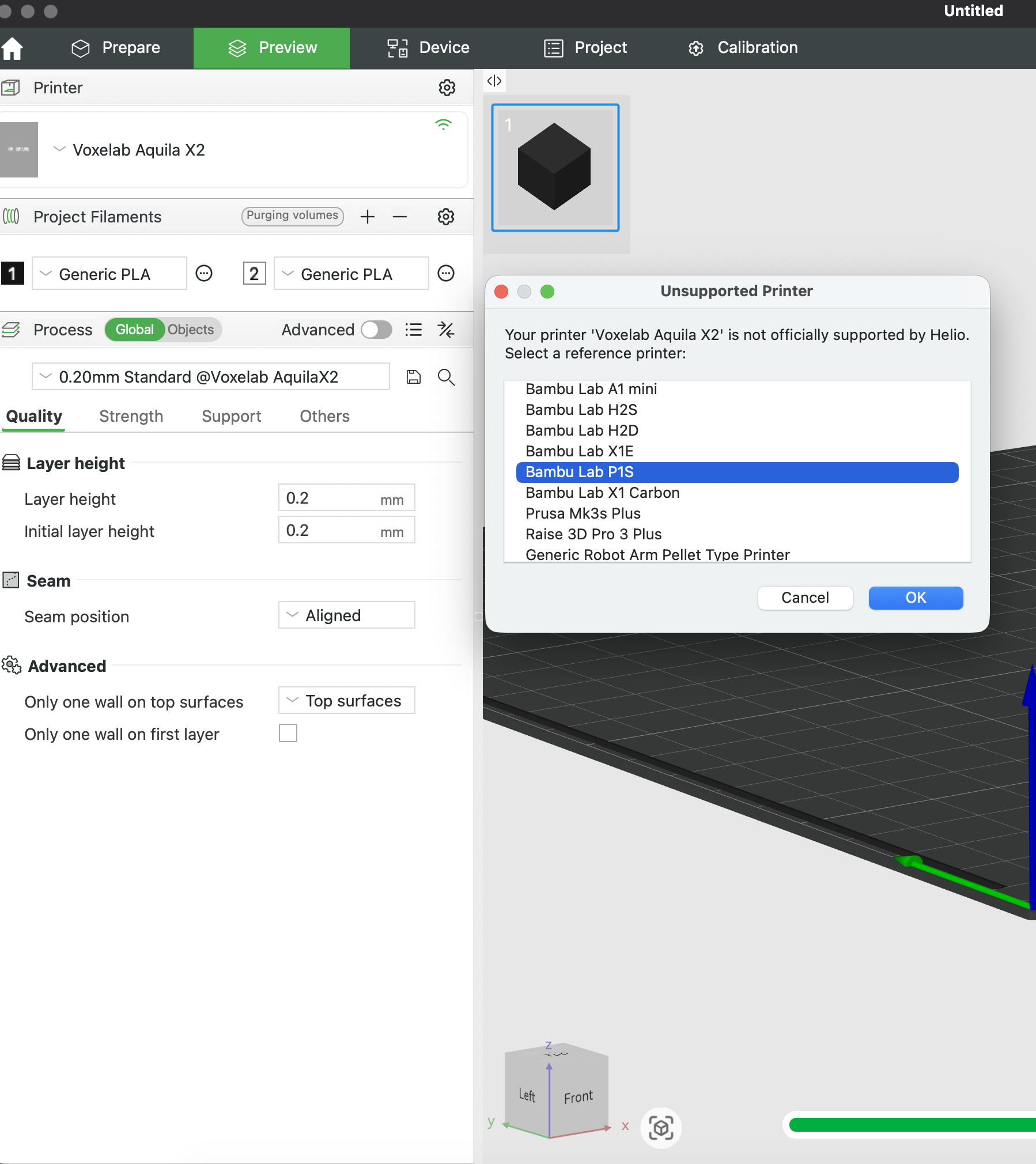
2. Click the Helio icon → When prompted with an unsupported printer warning, select a supported reference printer → Click Ok
3. Run Assess or Enhance as normal
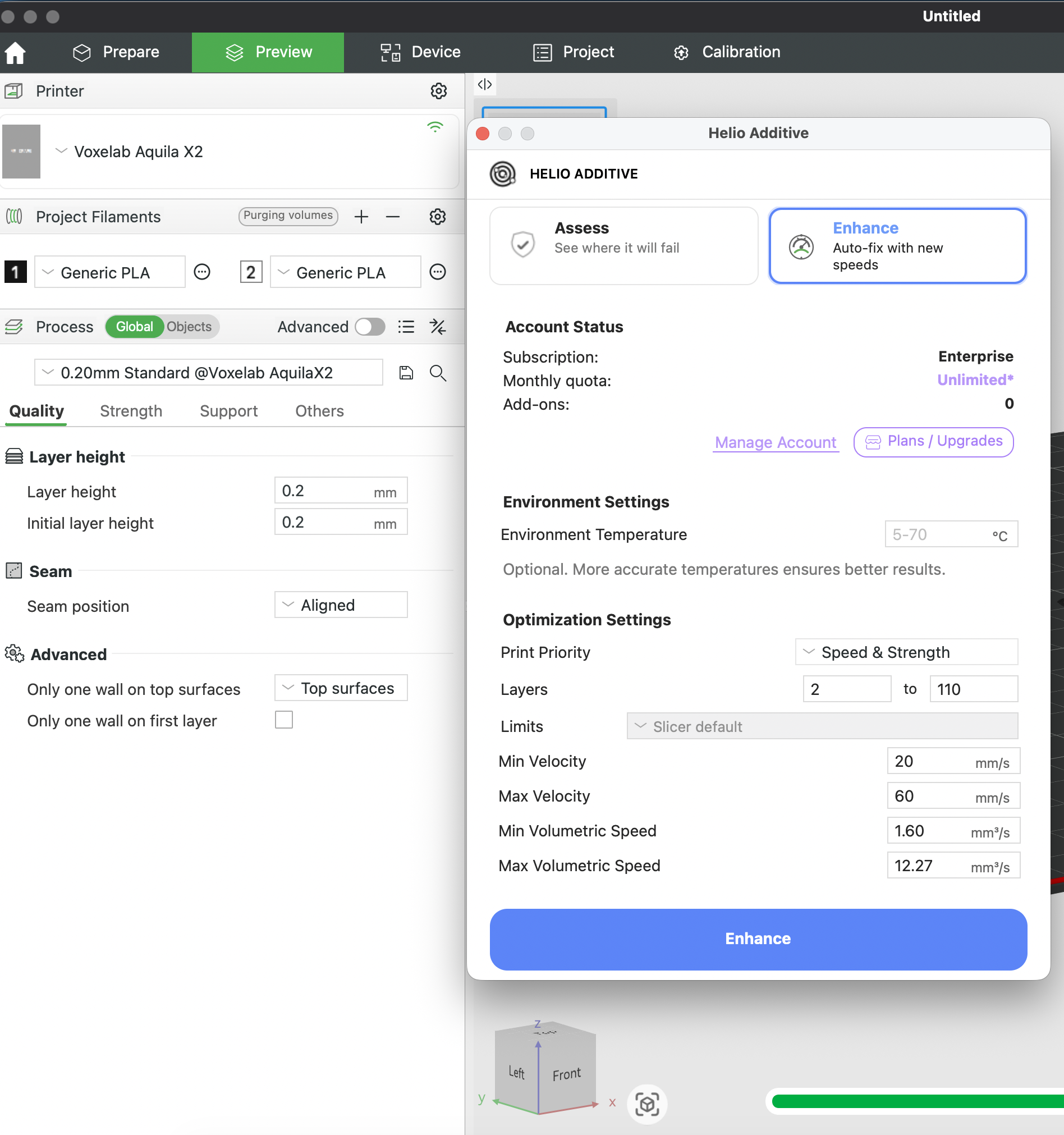
ℹ️ Slicer Default mode is enforced when using Enhance with an unsupported printer. Helio Default mode is not available. Simulation & optimisation accuracy will also be approximate and may not fully reflect your hardware’s specific thermal behaviour.
¶ 🧵 Unsupported Materials
ℹ️ Check the full supported filaments list here
If your filament profile is not natively in the Helio database, you can still run Assess or Enhance by referencing the closest supported material:
1. Slice using a generic filament profile (e.g., Generic PLA) or an unsupported material profile (e.g., Sunlu PLA)
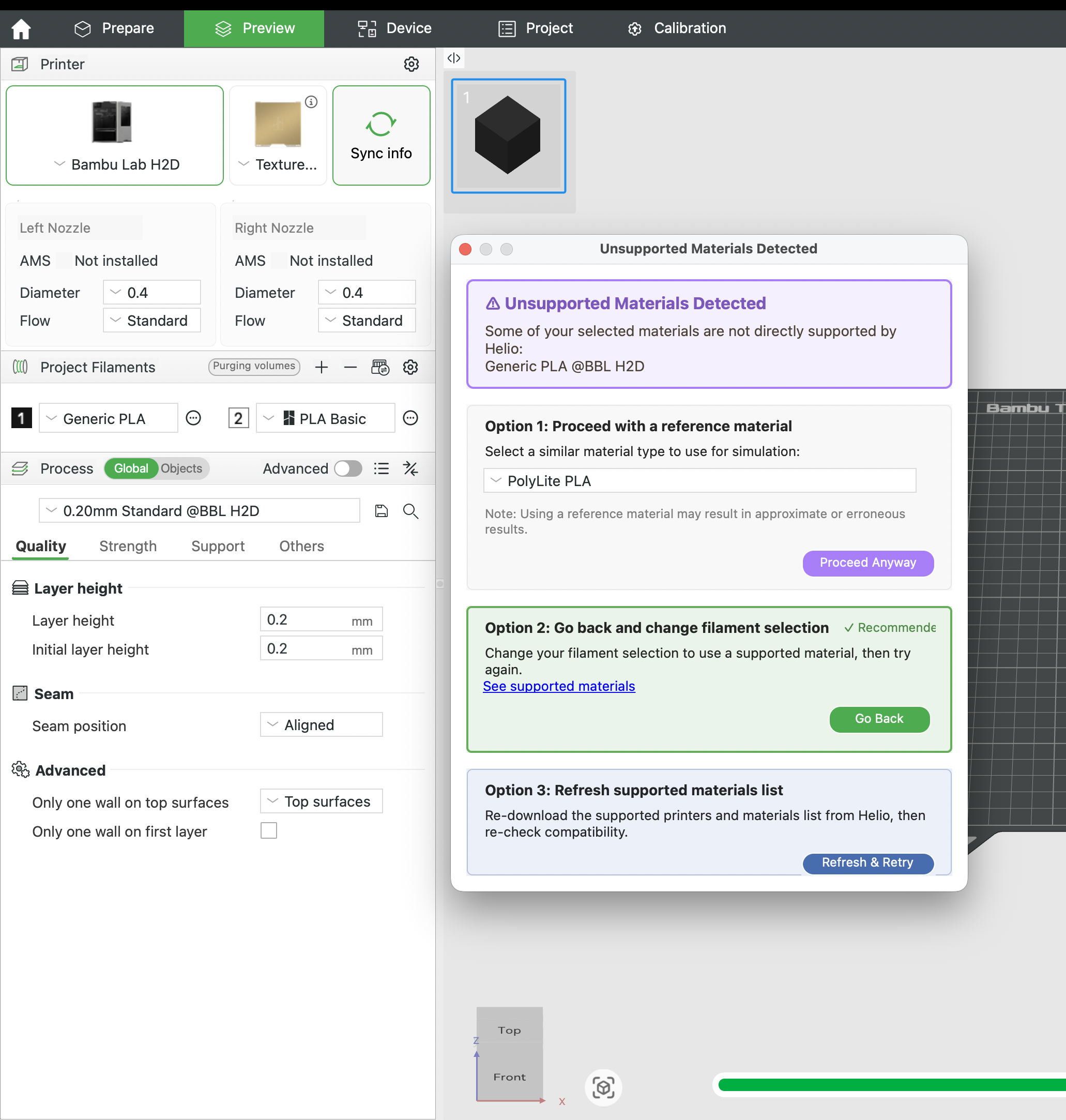
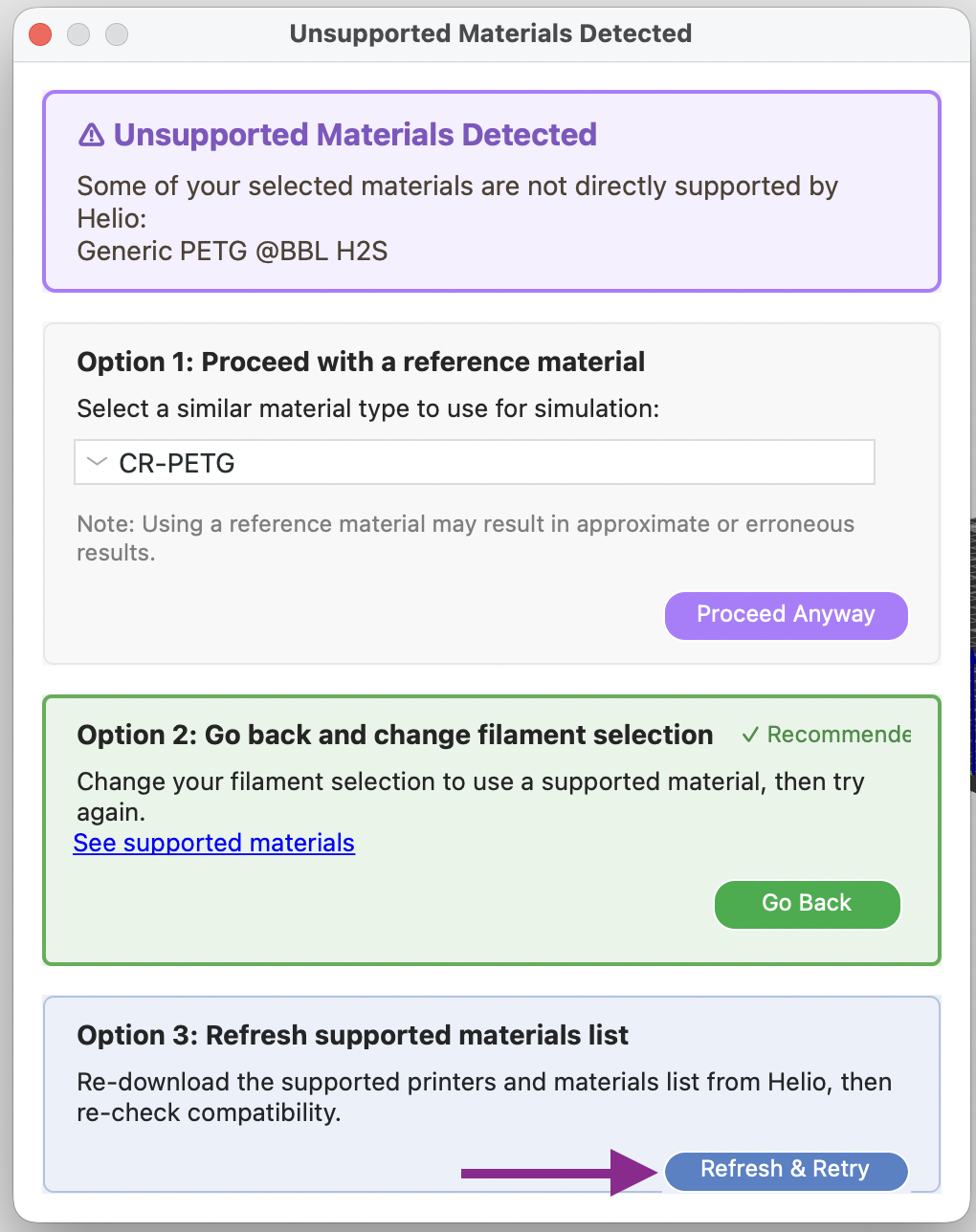
2. Click the Helio icon → Select a reference supported material from Helio’s list → Click Proceed Anyway
3. Run Assess or Enhance as normal
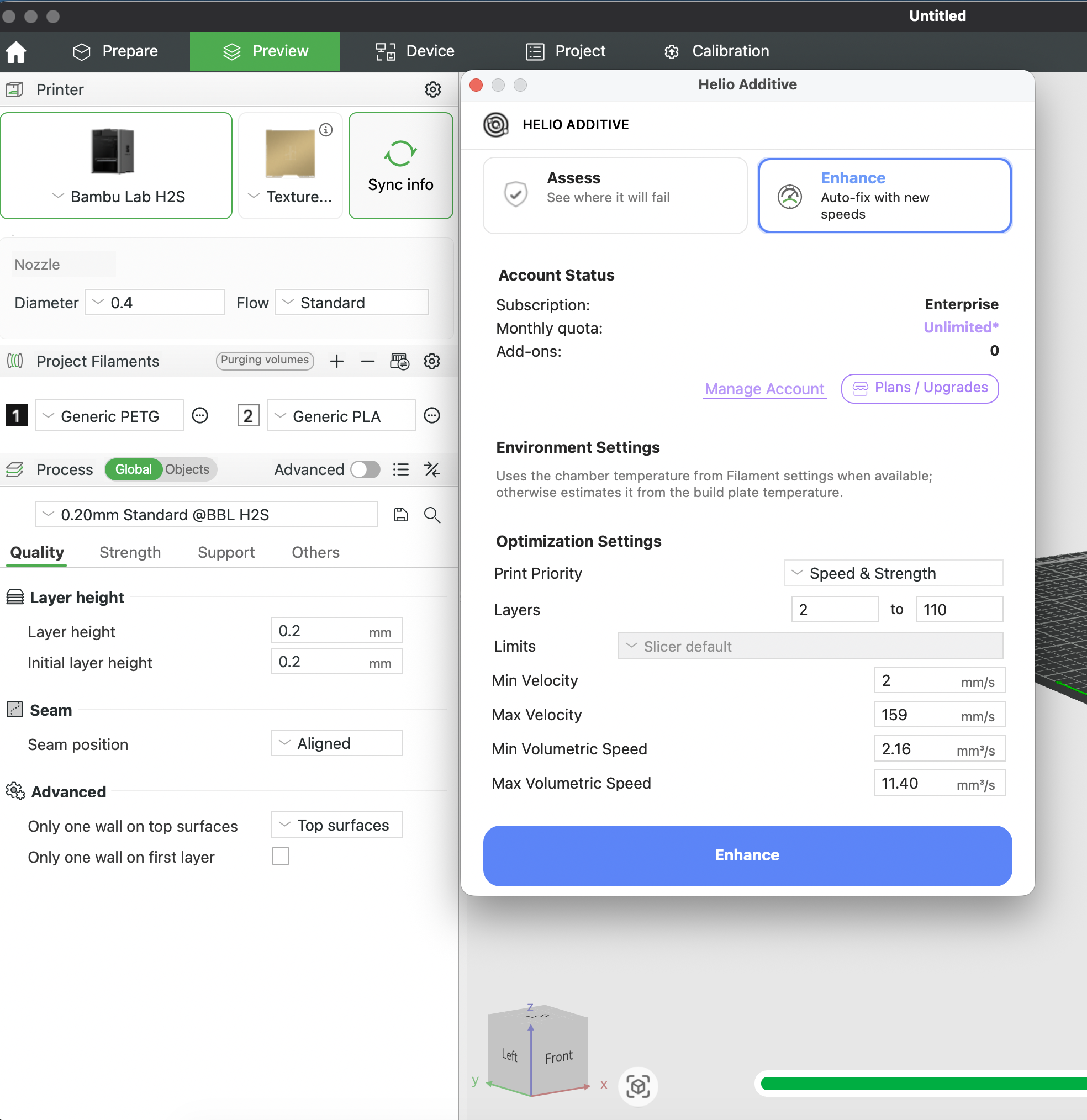
ℹ️ Slicer Default mode is enforced when using an unsupported material — Helio
Default mode is not available. This is because Helio needs to calibrate a material
to determine which defaults work best with different printers.
⚠️ Simulation accuracy will be approximate for mapped materials. Results are most
reliable when the reference material closely matches your filament’s thermal
properties (Tg, heat capacity, thermal conductivity).
4. If your material is on the supported list but you still get rerouted (e.g., due
to network issues), click Refresh & Retry to trigger a resync. You’ll be notified
once your supported material has been found in our database.
¶ 🖨️🧵 Both Unsupported
If both your printer and material are unsupported, follow both flows above. Select a reference printer first, then a reference material, before running Assess or Enhance.
¶ 📩 Request Support for Your Printer or Material
We add new printers and materials regularly. If yours isn’t supported yet, let us know and we may be able to prioritise it:
- Email: support@helioadditive.com
- Discord: discord.gg/EjQXDJP9kS